A Linux VPS with poor MySQL performance can result in slow websites, API delays, and server overload. Optimizing MySQL will improve stability, resource usage, and speed of queries, whether you’re running WordPress, e-commerce, or custom applications. MySQL performance optimization isn’t just about speed. It’s also about reliability, scalability, and efficient CPU and memory usage.
This guide will explain how to optimize MySQL for a Linux VPS. It includes practical explanations and examples of real-world configurations.
How to Optimize MySQL Performance on a Linux VPS
To optimize MySQL performance on Linux VPS, you need to combine a proper configuration with efficient query design and resource monitoring. You also need regular maintenance. You can improve database performance by enabling slow query logging, tuning the memory usage, optimizing indexes, and monitoring system resources.
Prerequisites
Before starting, ensure you have:
- A Linux VPS (Ubuntu, Debian, CentOS, Rocky Linux)
- Install MySQL or MariaDB
- SSH with sudo privileges
- Basic understanding of Linux commands
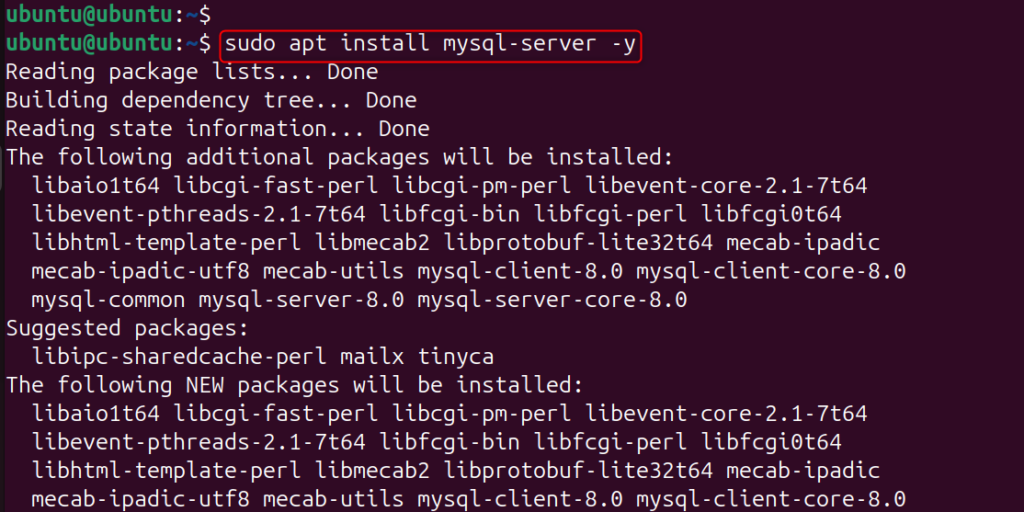
If you don’t have MySQL on the system, install it via the command:
| sudo apt install mysql-server -y |
Step 1: Check MySQL Server Status
Check the service status to ensure MySQL is active and responsive. By checking the status of MySQL’s service, you can ensure that it is responsive and active.
| sudo systemctl status mysql |
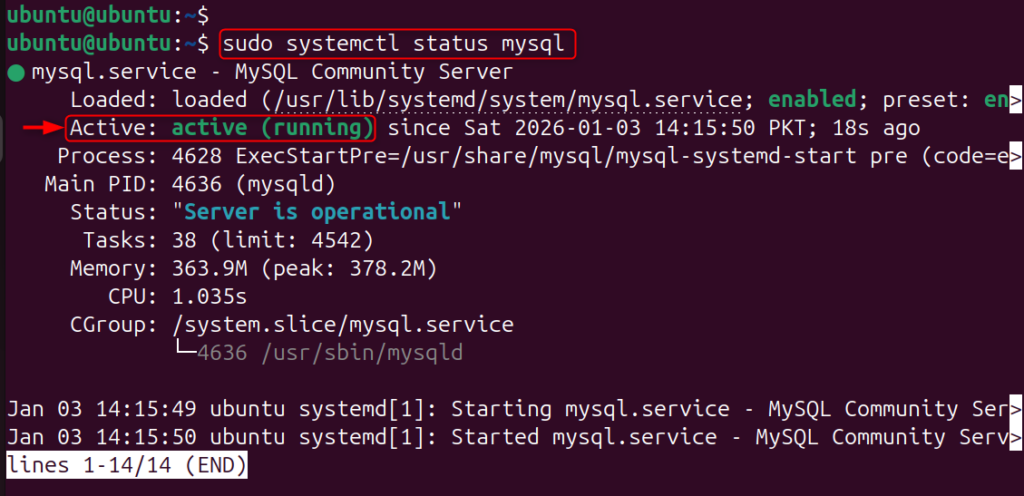
This helps to eliminate crashes or misconfigurations before tuning.
Step 2: Identify Current Resource Usage
Understanding how MySQL uses memory and CPU helps you optimize. Slow queries or crashes are often caused by high load or memory exhaustion.
| top |
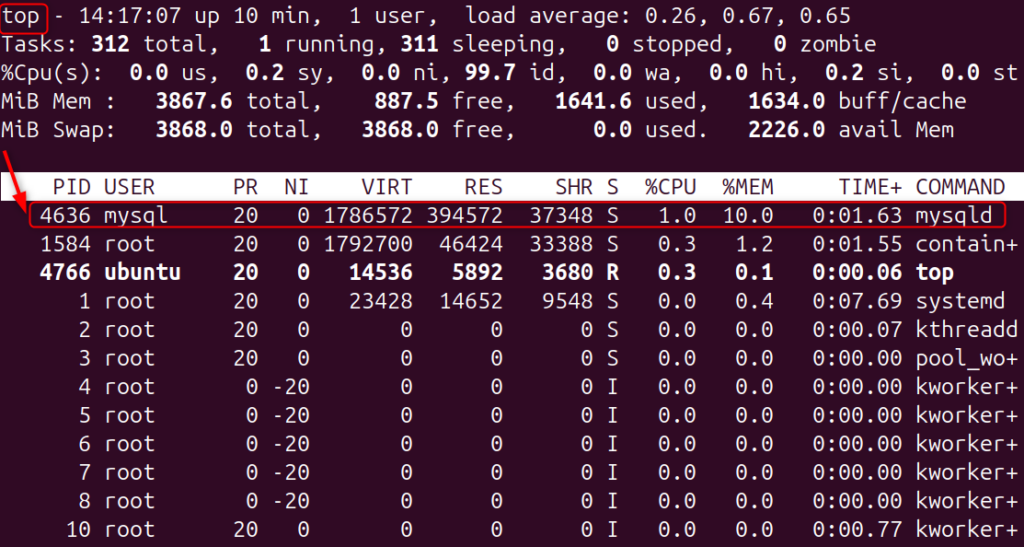
Monitoring tools can reveal if MySQL is the bottleneck.
Step 3: Enable MySQL Slow Query Log
This log records queries that take too long. This can help identify SQL statements that are inefficient and need to be optimized.
| SET GLOBAL slow_query_log = ‘ON’;SET GLOBAL long_query_time = 2; |

The biggest impact on performance is to fix slow queries.
Step 4: Analyze Slow Queries
After slow queries have been logged, an analysis of them will reveal which indexes and query structures require improvement.
| sudo tail -f /var/log/mysql/error.log |
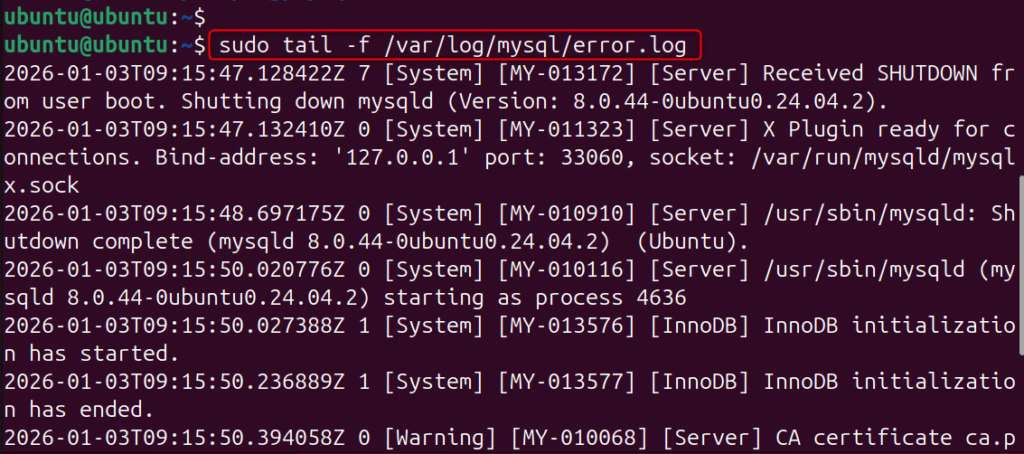
Instead of guessing, this step allows you to pinpoint performance issues.
Step 5: Optimize Database Indexes
MySQL can locate data more quickly with the help of indexes. Incorrect or missing indexes can cause full table scans, which slow down queries.
| CREATE INDEX idx_user_email ON `user` (email); |

The query speed is dramatically improved by adding proper indexes.
Step 6: Tune InnoDB Buffer Pool Size
InnoDB’s buffer pool stores data and indexes. If the buffer pool is too small, MySQL will read from disk more frequently, which reduces performance.
| innodb_buffer_pool_size = 2G |
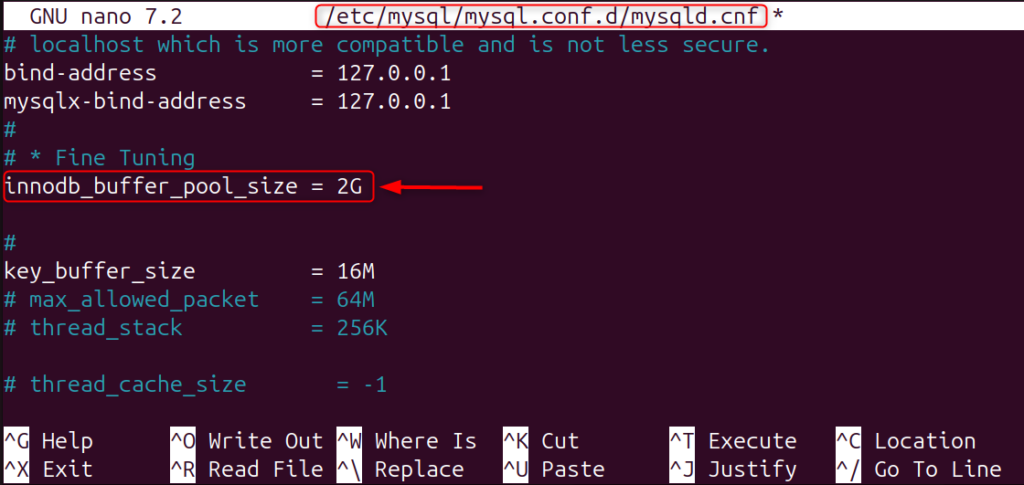
It is best to set it at 60-70% RAM.
Step 7: Optimize Query Cache (If Enabled)
The query cache may improve performance on systems with heavy workloads that are read-intensive, but it can slow down heavily write-intensive systems.
| SHOW VARIABLES LIKE ‘query_cache%’; |

It’s not enabled by default in modern MySQL versions, but you should check.
Step 8: Adjust Max Connections
MySQL will slow down or crash if it has too many connections open.
| max_connections = 150 |
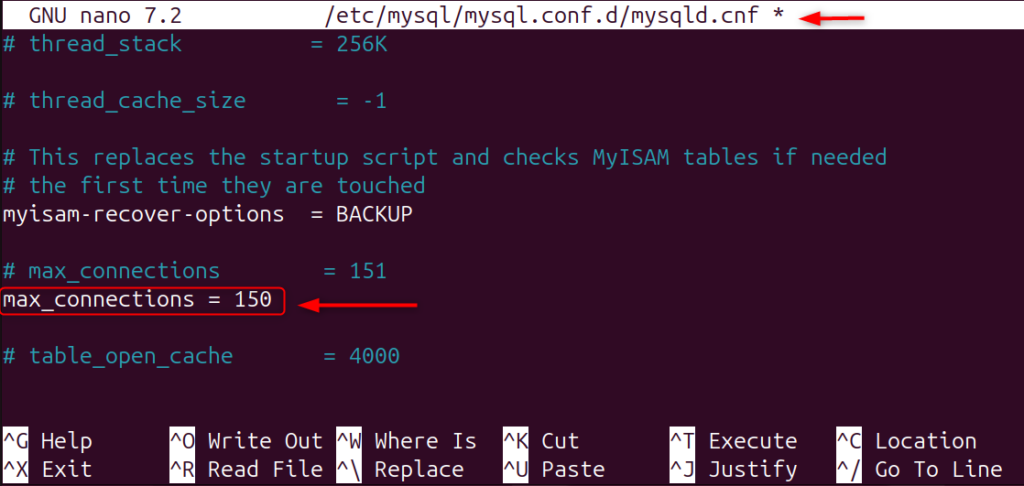
Limiting connections ensures stable performance under load.
Step 9: Optimize Temporary Tables
Large temporary tables that are written to disk can slow down queries. Performance is improved by increasing the size of temporary tables in memory.
| tmp_table_size = 64Mmax_heap_table_size = 64M |
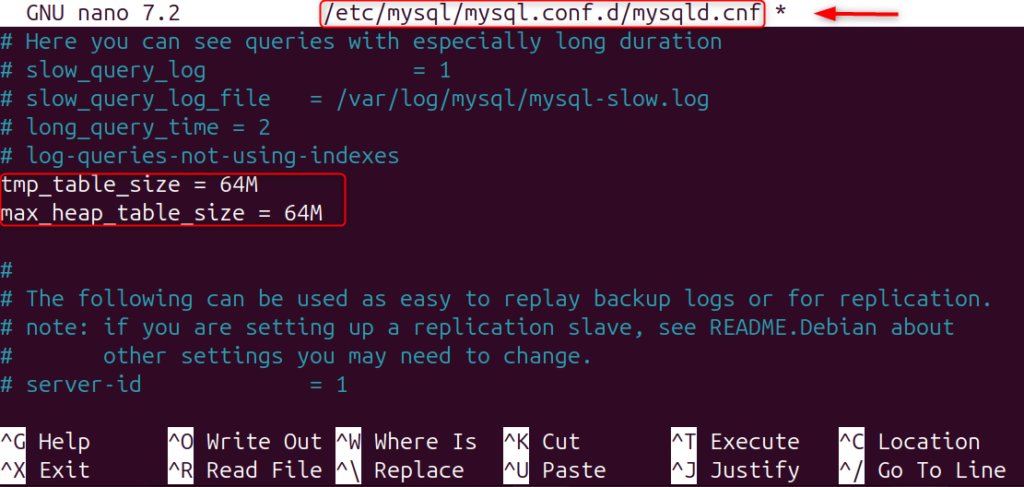
This step is important, especially for complex SELECT queries.
Step 10: Enable MySQL Performance Schema
Performance Schema gathers detailed execution metrics. It can help diagnose performance bottlenecks on a granular basis.
| performance_schema = ON |
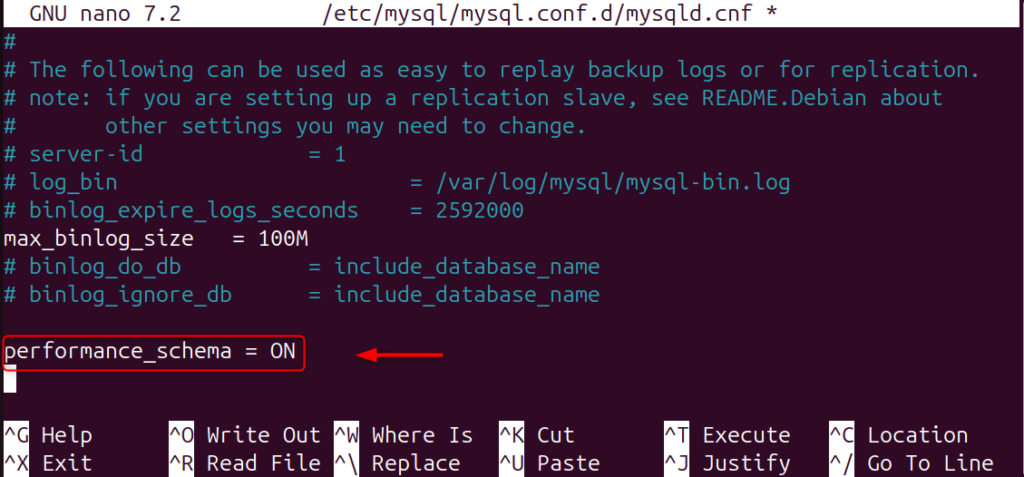
This tool is very useful for monitoring and advanced optimization.
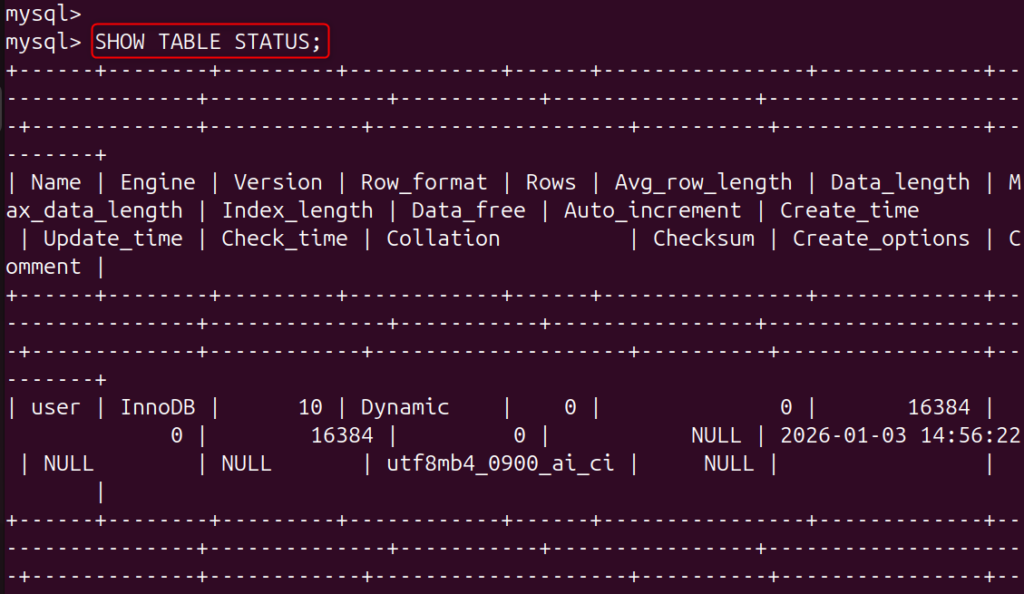
Step 11: Optimize Disk and Storage Engine
InnoDB and SSD storage ensure faster disk I/O and better concurrency management.
| SHOW TABLE STATUS; |
Step 12: Optimize MySQL Configuration File (my.cnf)
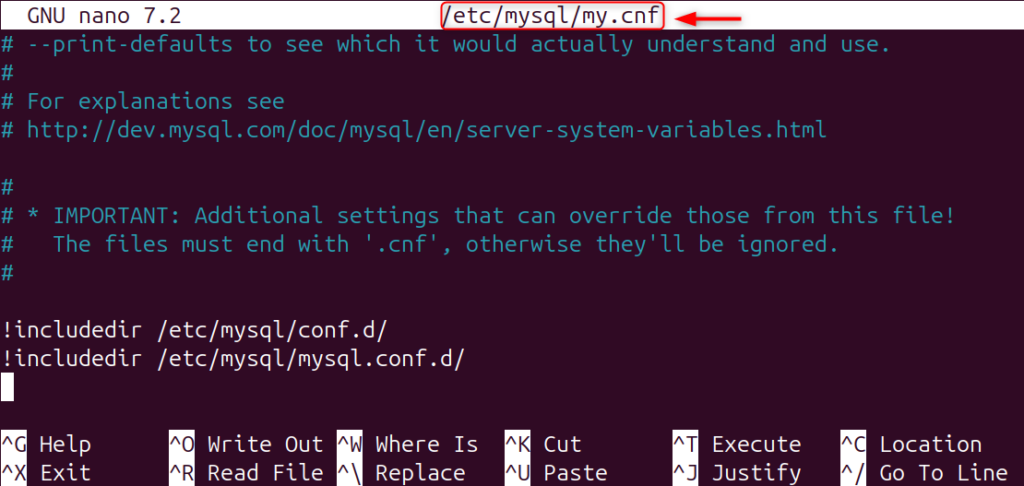
The MySQL configuration file is responsible for controlling server behavior. Even small adjustments can improve performance. Always back up the file before editing.
| sudo nano /etc/mysql/my.cnf |
Step 13: Restart MySQL After Changes
MySQL must be restarted to apply configuration changes. When you restart, new memory and performance settings are applied.
| sudo systemctl restart mysql |

Step 14: Regularly Optimize Tables
Tables become fragmented over time. By optimizing them, you can improve read performance and decrease storage usage.
| OPTIMIZE TABLE user; |
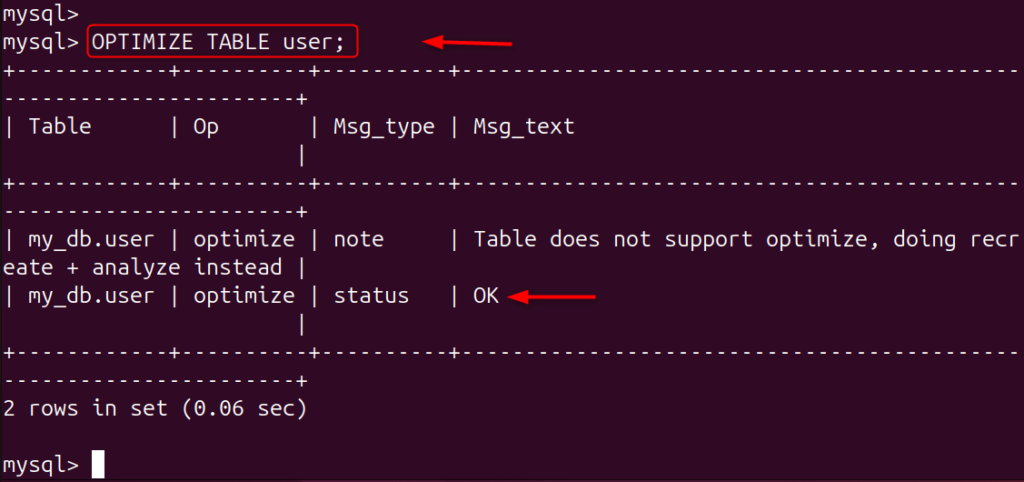
This is a useful step for tables that are frequently updated.
Step 15: Use Proper Data Types
By using the correct data types, you can reduce storage and increase index efficiency. Faster queries are possible with smaller data types.
| INT instead of BIGINTVARCHAR(100) instead of TEXT |
Step 16: Limit SELECT * Queries
The memory and data transfer are increased when you select columns that are not necessary.
| SELECT id, name, email, created_at FROM my_db.`user`LIMIT 3; |
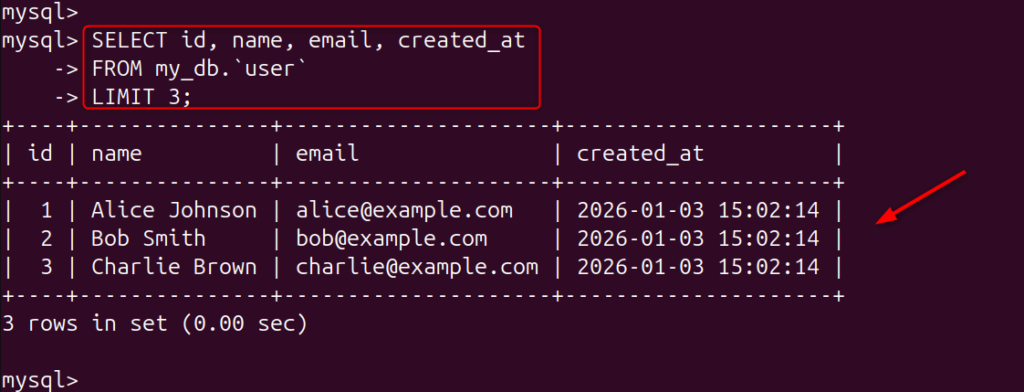
For better performance, only fetch the columns you need.
Step 17: Monitor MySQL with Tools
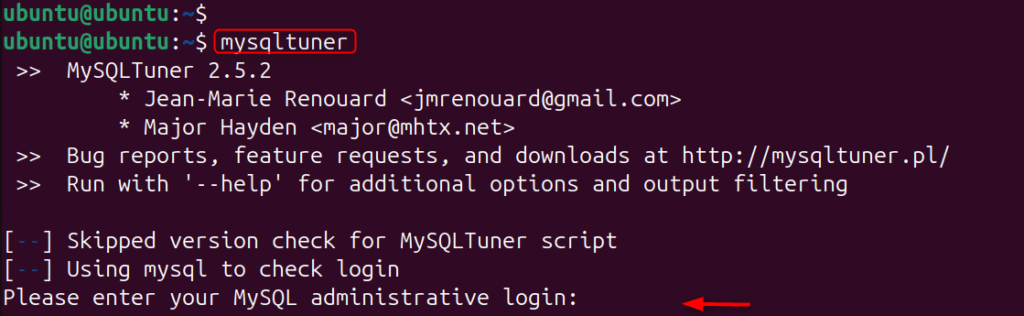
Monitoring tools track performance and identify issues early. MySQLTuner is a popular option, as are Percona Toolkit and Monit.
| sudo apt install mysqltuner |
Common MySQL Performance Issues
- Missing indexes
- Insufficient RAM allocation
- Poor query design
- Excessive connections
- Disk I/O bottlenecks
Identifying these early prevents downtime.
Conclusion
Optimizing MySQL performance on a Linux VPS involves tuning memory settings such as the InnoDB buffer pool, enabling and analyzing slow query logs, optimizing indexes, limiting unnecessary connections, and improving query efficiency. By adjusting MySQL configuration parameters, using proper data types, monitoring resource usage, and maintaining tables regularly, you can significantly reduce query execution time, improve stability, and ensure your database performs efficiently under load.